
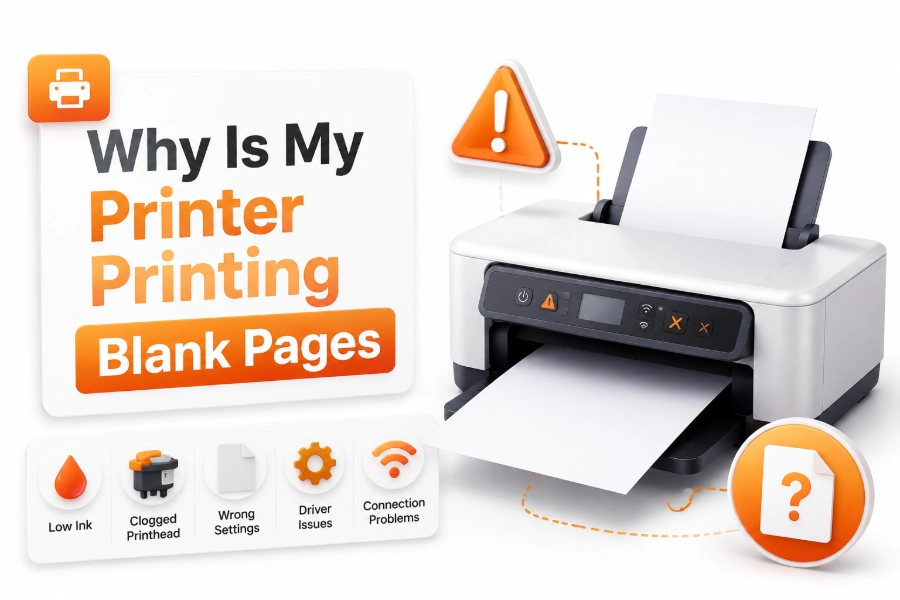
Printing a document only to receive completely blank pages can be frustrating, especially when you need the output immediately. Many users search for why is my printer printing blank pages because this issue can happen suddenly even when the printer appears to be working normally. The problem may come from simple causes like empty ink cartridges, incorrect settings, blocked print heads, or connection issues.
A printer printing blank pages does not always mean the device is damaged. In many cases, the issue can be fixed with basic troubleshooting steps that take only a few minutes. Checking ink levels, cleaning the print head, updating drivers, and reviewing print settings can often restore normal printing.
This guide explains the most common reasons behind blank pages, practical solutions for different printer types, and steps you can follow to prevent the problem from happening again.
Common Reasons Your Printer Prints Blank Pages
A printer can produce blank pages for several reasons, ranging from hardware problems to software settings. Identifying the exact cause is the first step toward finding the right solution. The issue may involve ink supply, printer settings, or communication between your computer and the printer.
One of the most common causes is an empty or incorrectly installed cartridge. Even if your printer shows that it has ink, the cartridge may not be making proper contact with the printer or the ink may have dried inside the nozzle.
Another possible reason is a clogged print head. When a printer sits unused for a long time, ink can dry and block the tiny openings that release ink onto the paper. This prevents ink from reaching the page, resulting in blank output.
Check Your Ink or Toner Levels
Low ink or toner is one of the first things to check when your printer produces blank pages. Some printers may continue accepting print commands even when cartridges are empty, but the final page may contain little or no visible content.
Open your printer software or control panel to check the remaining ink or toner amount. If the level is low, replacing the cartridge may solve the problem immediately. Make sure you install the correct cartridge model recommended by your printer manufacturer.
Check Cartridge Installation
Incorrect cartridge installation can also cause blank printing. Remove the cartridge carefully and reinstall it to ensure it is properly positioned. Some new cartridges have protective tape or plastic covers that must be removed before use.
If you recently replaced your cartridge and the printer started printing blank pages, check whether the cartridge is compatible and installed correctly. A faulty or damaged cartridge can also prevent normal printing.
Clean the Printer Print Head
A clogged print head is another major reason why printers produce blank pages. The print head contains tiny nozzles that spray ink onto paper. When these openings become blocked, ink cannot pass through properly.
Most modern printers include a built-in cleaning option in their settings. Running a cleaning cycle can remove dried ink and improve print quality. However, avoid running multiple cleaning cycles continuously because they can consume a significant amount of ink.
Run a Nozzle Check Test
A nozzle check test helps determine whether the print head is working correctly. The printer creates a pattern that shows whether all ink colors are being printed properly.
If the pattern contains missing sections or blank areas, the print head may require additional cleaning. Some printers may need several cleaning cycles before normal printing returns.
Check Printer Settings Before Printing
Incorrect print settings can sometimes make documents appear blank. For example, selecting the wrong paper type, using an incorrect color mode, or choosing a white font color can affect the final output.
Open your print settings before sending a document and confirm that the correct printer is selected. Make sure options like “Print Blank Pages” or draft modes are not causing unexpected results.
Verify the Correct Printer Is Selected
Many computers have multiple printers installed. If the wrong printer is selected, your document may be sent to an inactive or incorrectly configured device.
Before printing, check the printer name in the print dialog box. Confirm that it matches your actual printer and that the device status shows it is ready.
Restart Your Printer and Computer
Temporary software errors can cause communication problems between your computer and printer. Restarting both devices can refresh the connection and resolve minor issues.
Turn off the printer completely, unplug it for a few seconds, and then reconnect it. Restart your computer afterward and try printing a test document again.
Check Printer Connection
For USB printers, make sure the cable is securely connected. A damaged or loose cable can interrupt communication and cause printing failures.
For wireless printers, check that the printer and computer are connected to the same Wi-Fi network. Network interruptions can prevent proper printing commands from reaching the device.
Update or Reinstall Printer Drivers
Printer drivers allow your computer to communicate with your printer correctly. If the driver becomes outdated, corrupted, or incompatible with your operating system, printing problems may occur.
Updating the driver from the printer manufacturer’s website can fix many issues, including blank pages. New drivers often improve compatibility and solve communication errors.
Remove and Reinstall Printer Software
If updating the driver does not help, removing and reinstalling the printer software may solve the problem. This creates a fresh connection between your computer and printer.
After reinstalling, print a test page to check whether the printer is working properly. If the test page prints correctly, the issue may have been caused by previous software settings.
Check for Paper and Hardware Problems
Although blank pages are usually related to ink or software, hardware problems can also create printing issues. Mechanical failures, damaged components, or incorrect paper placement may affect printing performance.
Make sure the paper tray is loaded correctly and that there are no stuck sheets inside the printer. Inspect the printer for warning lights or error messages that may indicate a hardware issue.
Signs of Hardware Problems
Common signs that your printer may have a hardware problem include:
- The printer makes unusual noises.
- Error messages appear frequently.
- The printer stops during printing.
- Cleaning cycles do not improve quality.
- Multiple computers experience the same issue.
If these problems continue after troubleshooting, professional repair may be necessary.
Printer Type Specific Solutions
Different printer technologies can experience blank page problems for different reasons. Inkjet printers commonly face dried ink and clogged nozzles, while laser printers may experience toner or drum-related issues.
Understanding your printer type can help you choose the correct troubleshooting method. The solution that works for an inkjet printer may not apply to a laser printer.
Inkjet Printer Blank Page Fixes
Inkjet printers usually require checking ink cartridges, cleaning print heads, and running nozzle checks. Regular printing helps prevent ink from drying inside the system.
If the printer remains unused for several weeks, performing maintenance before printing important documents can help avoid blank pages.
Laser Printer Blank Page Fixes
Laser printers use toner instead of liquid ink. Blank pages may occur because of empty toner cartridges, damaged drums, or incorrect installation.
Removing and reinstalling the toner cartridge can sometimes fix the issue. If the toner is empty or the drum is damaged, replacement may be required.
How to Prevent Blank Pages in the Future
Preventive maintenance can reduce the chances of your printer suddenly producing blank pages. Regular cleaning, proper storage, and using quality supplies can improve printer reliability.
Avoid leaving inkjet printers unused for long periods. Printing a small test page occasionally keeps ink flowing and reduces the chance of clogged nozzles.
Printer Maintenance Tips
- Use genuine or reliable ink cartridges.
- Keep printer drivers updated.
- Clean the printer regularly.
- Store paper properly.
- Run maintenance checks when needed.
- Avoid ignoring low ink warnings.
Conclusion
A printer printing blank pages can happen for many reasons, including empty cartridges, clogged print heads, incorrect settings, outdated drivers, or hardware issues. The good news is that most causes can be fixed with simple troubleshooting steps.
When you face this problem, start by checking ink levels, reinstalling cartridges, cleaning the print head, and confirming your printer settings. If basic solutions do not work, updating drivers or checking for hardware problems may help.
Knowing why is my printer printing blank pages makes it easier to find the right solution and get your printer working again without unnecessary repairs. Regular maintenance and proper printer care can also prevent similar problems in the future.
FAQ
Why does my printer print blank pages even with ink?
Your printer may print blank pages even with ink because of clogged print heads, incorrect cartridge installation, outdated drivers, or communication problems between the printer and computer.
How do I fix a printer that prints blank pages?
Start by checking ink levels, reinstalling cartridges, running a print head cleaning cycle, checking settings, and updating printer drivers. These steps solve most blank page problems.
Can a clogged print head cause blank pages?
Yes, clogged print heads can block ink from reaching the paper. Running a cleaning cycle or nozzle check can often remove dried ink and restore normal printing.
Why is my new ink cartridge printing blank pages?
A new cartridge may print blank pages if protective tape was not removed, the cartridge is installed incorrectly, or the cartridge is defective or incompatible with your printer.
Do laser printers print blank pages because of low toner?
Yes, low toner, incorrect toner installation, or damaged printer components can cause laser printers to produce blank pages. Replacing the toner may solve the issue.
0 Comments