
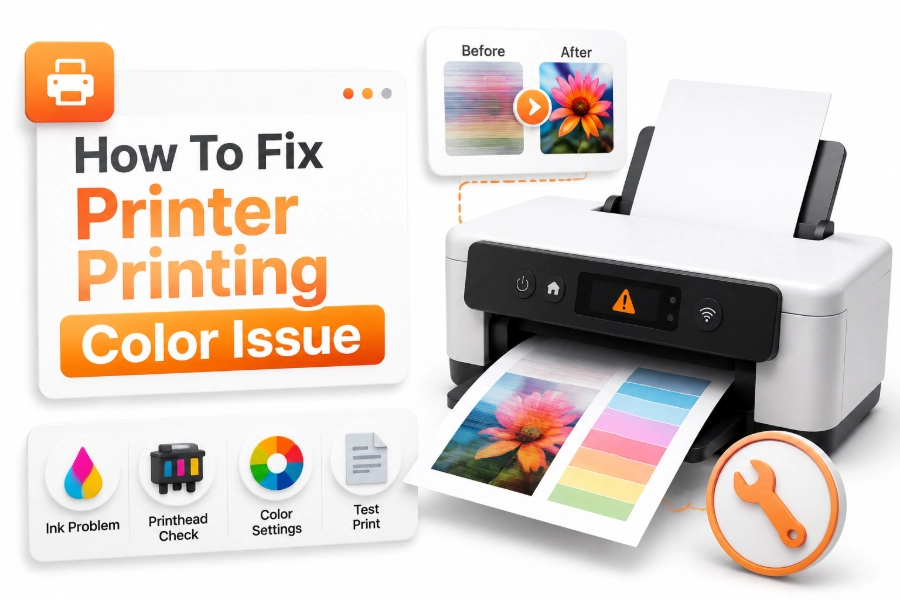
A printer that suddenly produces incorrect colors can create frustrating results, especially when printing photos, presentations, or important documents. Many users search for how to fix printer printing color issue because the problem can happen even when ink cartridges appear full and the printer seems to be working normally.
Color printing problems can occur for several reasons, including empty ink cartridges, clogged print heads, incorrect settings, outdated drivers, or poor cartridge installation. Sometimes the printer may print faded colors, missing colors, wrong shades, or completely different tones from what appears on the screen.
Fortunately, most printer color issues can be fixed with basic troubleshooting steps. By checking ink levels, adjusting settings, cleaning the print head, and updating printer software, you can often restore accurate color output without professional repair.
Check Ink Cartridge Levels and Installation
One of the most common reasons behind printer color problems is low or empty ink cartridges. A printer may continue printing even when one or more color cartridges are running out, but the output may appear faded or missing certain colors.
Open your printer software or device settings to check the ink levels. If a specific color cartridge is empty or nearly empty, replacing it may immediately solve the problem. Make sure you use cartridges that are compatible with your printer model.
Make Sure Cartridges Are Installed Correctly
Incorrect cartridge installation can prevent ink from flowing properly. If a cartridge is not positioned correctly, the printer may fail to use that color during printing.
Remove the cartridges carefully and reinstall them according to the manufacturer’s instructions. Also, check whether new cartridges have protective tape or seals that need to be removed before installation.
Clean the Printer Print Head
A clogged print head is another common cause of color printing problems, especially with inkjet printers. When ink dries inside the small nozzles, certain colors may not appear correctly on printed pages.
Most printers include a built-in cleaning function that can remove blockages. Running a print head cleaning cycle allows fresh ink to flow through the nozzles and can improve color accuracy.
Run a Nozzle Check Test
A nozzle check test creates a pattern that shows whether each color is printing correctly. It helps identify missing colors, broken lines, or uneven ink distribution.
If the test pattern shows gaps or missing sections, run another cleaning cycle. Avoid performing too many cleaning cycles in a row because they can use a large amount of ink.
Check Printer Color Settings
Incorrect printer settings can change how colors appear on paper. For example, selecting grayscale mode, draft printing, or incorrect paper type settings can affect the final output.
Before printing, open the printer preferences and review the color options. Make sure color printing is enabled and the correct paper type is selected for your document.
Adjust Color Management Settings
Some printers allow users to control color management options. Incorrect settings between your computer and printer can cause colors to appear darker, lighter, or completely different.
For professional photo printing, choose the appropriate color profile and avoid using multiple applications that control colors at the same time. This helps maintain consistent results.
Update Printer Drivers and Software
Printer drivers control communication between your computer and printer. If the driver is outdated or corrupted, it can create printing errors, including incorrect colors.
Visit the printer manufacturer’s website and install the latest driver version for your operating system. Updated drivers often fix compatibility issues and improve printing performance.
Reinstall Printer Software
If updating the driver does not solve the color problem, reinstalling the printer software may help. Removing old settings and creating a fresh connection can fix software-related printing issues.
After reinstalling, print a test page or color sample document to check whether the colors have returned to normal.
Check Paper Quality and Type
The type of paper you use can affect how colors appear. Regular office paper absorbs ink differently compared to photo paper, which can make colors look less accurate.
Always select the correct paper type in your printer settings. Using photo paper settings with normal paper or normal settings with glossy paper can result in poor color output.
Use Recommended Printing Materials
Low-quality paper or incompatible materials may prevent ink from drying properly and affect color accuracy. Using manufacturer-recommended paper often produces better results.
For important images or designs, use high-quality paper designed specifically for your printer type.
Perform Printer Alignment
Misaligned printer components can create color problems such as blurry images, incorrect shades, or overlapping colors. Printer alignment helps position the print head correctly.
Most printers include an alignment tool in their maintenance menu. Running this process can improve print quality and restore proper color placement.
How Alignment Helps Color Printing
During alignment, the printer adjusts the position of the print head to ensure each color layer is placed correctly. This is especially important for printers that combine multiple ink colors to create accurate shades.
Regular alignment checks can help maintain consistent output after replacing cartridges or moving the printer.
Restart and Reset Printer Settings
Temporary software errors can sometimes affect color printing. Restarting your printer clears minor problems and allows the device to reconnect properly with your computer.
Turn off the printer, disconnect the power cable, wait for a few minutes, and reconnect it. Then try printing a color test page again.
Restore Default Printer Settings
If you changed many printer options and cannot identify the problem, restoring default settings may help. Incorrect custom settings can sometimes interfere with normal color printing.
After resetting, adjust only the necessary settings for your printing needs.
Fix Color Problems on Different Printer Types
Different printer technologies have different causes for color issues. Inkjet printers commonly experience problems related to dried ink and clogged nozzles, while laser printers may have toner or drum-related issues.
Identifying your printer type can help you choose the correct troubleshooting method and avoid unnecessary replacements.
Inkjet Printer Color Problems
Inkjet printers rely on liquid ink cartridges, making them more likely to experience clogged print heads. Regular cleaning and occasional printing can help prevent dried ink problems.
If colors remain incorrect after cleaning, check whether individual cartridges are damaged or need replacement.
Laser Printer Color Problems
Laser printers use toner cartridges and imaging drums to create printed colors. Incorrect colors may result from low toner, damaged drums, or improper cartridge installation.
Replacing empty toner cartridges or checking internal components can often restore proper color printing.
Common Printer Color Issues and Quick Fixes
| Color Problem | Possible Cause | Solution |
|---|---|---|
| Missing colors | Empty cartridge or clogged nozzle | Replace ink or clean print head |
| Faded colors | Low ink or wrong settings | Check cartridges and adjust settings |
| Wrong color shades | Incorrect color profile | Change color management settings |
| Blurry colors | Alignment issue | Run printer alignment |
| No color printing | Grayscale mode enabled | Enable color printing |
Tips to Prevent Future Color Printing Problems
Regular printer maintenance can reduce the chances of color issues appearing again. Simple habits like checking ink levels and cleaning the printer when needed can improve performance.
Avoid allowing cartridges to remain empty for long periods because dried ink can damage the print system. Keeping your printer software updated also helps maintain compatibility.
Printer Color Maintenance Tips:
- Clean print heads regularly.
- Use compatible cartridges.
- Keep printer drivers updated.
- Select the correct paper settings.
- Print occasionally to prevent ink drying.
- Store paper in a dry location.
Conclusion
Printer color problems can happen because of many different causes, from empty cartridges and clogged print heads to incorrect settings and outdated drivers. Most issues can be solved with simple troubleshooting steps instead of replacing the entire printer.
When you know how to fix printer printing color issue, you can quickly identify the cause and restore accurate print quality. Start with basic checks like ink levels, cartridge installation, and printer settings before moving to advanced solutions.
Regular maintenance, proper supplies, and updated software will help keep your printer producing clear and accurate colors for a longer time.
FAQ
Why is my printer printing wrong colors?
Your printer may print wrong colors because of low ink, clogged print heads, incorrect color settings, outdated drivers, or incompatible cartridges.
Why is my printer missing certain colors?
Missing colors usually happen because a cartridge is empty, the print head is clogged, or ink is not flowing correctly through the nozzles.
How do I clean my printer color cartridges?
You can clean cartridges by using the printer’s built-in cleaning function. For severe issues, removing and carefully cleaning the cartridge contacts may help.
Why does my printer print faded colors?
Faded colors can result from low ink levels, incorrect paper settings, poor-quality paper, or a clogged print head that prevents proper ink flow.
Can printer drivers affect color printing?
Yes, outdated or incorrect printer drivers can affect color accuracy. Updating or reinstalling drivers can often fix software-related color problems.
0 Comments