
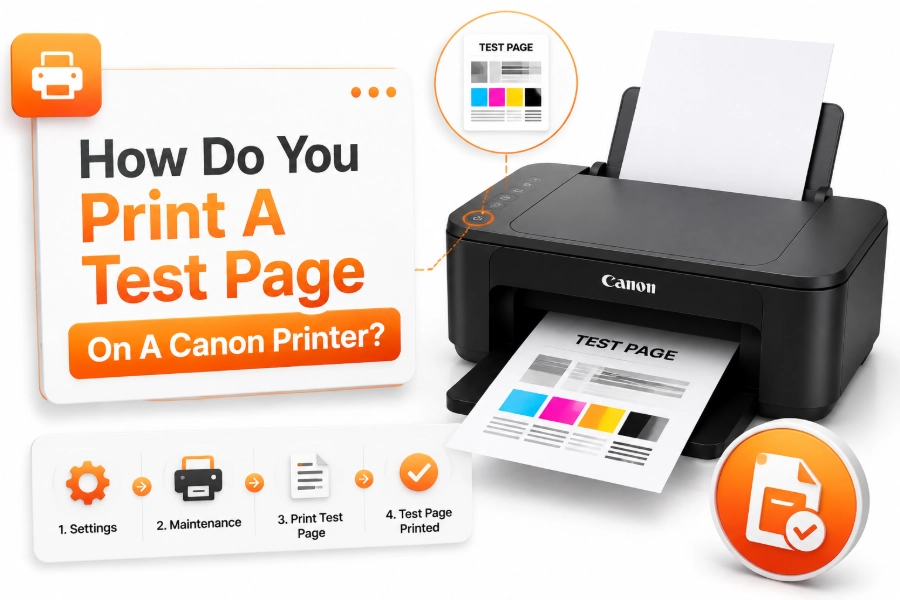
A test page is one of the easiest ways to check whether your Canon printer is working correctly. It helps identify problems with ink flow, print quality, alignment, and printer communication before you start printing important documents. Many users search for how do you print a test page on a Canon printer when they install a new printer, replace ink cartridges, or notice poor-quality prints.
Canon printers provide multiple ways to print a test page depending on the model and operating system. You can use the printer’s built-in maintenance options, Windows settings, macOS tools, or Canon’s official printer software. Each method checks different aspects of your printer and helps you find possible issues quickly.
This guide explains the easiest ways to print a Canon printer test page, what the results mean, and how to troubleshoot common printing problems.
Why You Should Print a Test Page on a Canon Printer
A Canon printer test page helps confirm that the device is operating properly. It checks whether the printer can correctly use ink cartridges, communicate with your computer, and produce clear output. This simple test can save time when diagnosing printing problems.
Many users print a test page after installing new ink cartridges or setting up a new printer. It allows them to check whether colors appear correctly, text looks sharp, and the print head is aligned properly.
A test page is also useful when your Canon printer has been unused for a long time. Regular testing can reveal dried ink, clogged nozzles, or alignment issues before they affect important print jobs.
How to Print a Test Page From a Canon Printer Control Panel
Most Canon printers allow users to print a test page directly from the printer itself. This method does not require a computer and is useful for checking whether the printer hardware is functioning correctly.
The exact menu names may vary depending on your Canon printer model. However, most models include maintenance options that allow you to check print quality and run diagnostic tests.
Steps Using Canon Printer Buttons or Touchscreen
Follow these general steps:
- Turn on your Canon printer.
- Load plain paper into the paper tray.
- Open the printer menu or setup screen.
- Select Maintenance or Setup.
- Choose Print Nozzle Check Pattern.
- Press OK or Start to print the test page.
The printed page will show color patterns and lines that help you determine whether the print head is working correctly.
How to Print a Canon Test Page on Windows
Windows provides a built-in option to print a test page for connected Canon printers. This method checks whether your computer and printer are communicating correctly.
Before starting, make sure your Canon printer is turned on and connected through USB or Wi-Fi. Installing the correct Canon printer driver will also improve compatibility.
Steps for Windows 10 and Windows 11
To print a Canon test page on Windows:
- Open Settings from the Start menu.
- Select Bluetooth & Devices.
- Click Printers & Scanners.
- Select your Canon printer.
- Open Printer Properties.
- Click Print Test Page.
Windows will send a sample document to your Canon printer. If the page prints correctly, your printer connection and driver settings are likely working properly.
How to Print a Canon Test Page on Mac
Mac users can also check Canon printer performance through macOS printer settings. This option helps confirm that the printer is correctly connected and recognized by the system.
The available options may depend on your Canon model and installed software. Some Canon printers work better with the Canon printer utility application.
Steps for macOS Users
Follow these steps:
- Open System Settings.
- Select Printers & Scanners.
- Choose your Canon printer.
- Open printer options or utility tools.
- Run a print test or maintenance check.
If your Mac does not show a test page option, install Canon’s official printer software for additional maintenance features.
How to Print a Nozzle Check Pattern on Canon Printers
Canon printers often use a nozzle check pattern instead of a traditional test page. This printed pattern is designed to check whether each ink nozzle is working correctly.
The nozzle check page displays different color blocks and lines. Missing sections usually indicate clogged nozzles or ink flow problems.
Reading Canon Nozzle Check Results
A good nozzle check page should have:
- Clear black text patterns.
- Complete color sections.
- Straight lines without gaps.
- Even ink distribution.
If colors are missing or lines appear broken, you may need to perform a print head cleaning cycle.
How to Clean Canon Print Head After a Failed Test Page
If your Canon test page shows missing colors or uneven lines, cleaning the print head may solve the issue. Dried ink can block the tiny nozzles and prevent proper printing.
Canon printers include automatic cleaning options that can restore normal ink flow. However, cleaning uses additional ink, so it should only be performed when necessary.
Steps to Run Canon Print Head Cleaning
- Open Canon printer settings.
- Select Maintenance.
- Choose Cleaning.
- Confirm the cleaning process.
- Print another nozzle check pattern.
If one cleaning cycle does not solve the issue, you may need to perform a deep cleaning. Avoid repeating deep cleaning too often because it consumes more ink.
Common Problems Found on Canon Test Pages
A Canon test page can reveal different printing problems. Understanding these results helps you choose the right solution instead of replacing cartridges unnecessarily.
| Test Page Problem | Possible Cause | Solution |
|---|---|---|
| Missing colors | Clogged nozzle or empty cartridge | Clean print head or replace ink |
| Broken lines | Alignment problem | Run print head alignment |
| Faded output | Low ink level | Replace cartridge |
| Blank sections | Ink flow issue | Perform cleaning cycle |
| Wrong colors | Incorrect settings | Check color options |
What to Check Before Printing a Canon Test Page
Before printing a test page, make sure your printer is properly prepared. Small issues like low paper supply or incorrect connections can prevent accurate testing.
Checklist before printing:
- Confirm the printer is turned on.
- Check ink cartridge levels.
- Load plain paper correctly.
- Verify USB or Wi-Fi connection.
- Install updated Canon drivers.
- Remove protective tape from new cartridges.
These quick checks help ensure the test page shows the real condition of your printer.
Canon Test Page vs Nozzle Check Pattern
Although many users use these terms interchangeably, a test page and nozzle check pattern serve different purposes. A standard test page checks printer communication, while a nozzle check focuses on ink delivery and print head performance.
A Windows test page confirms that your computer can communicate with the Canon printer. A nozzle check pattern helps identify physical printing problems.
Which One Should You Use
Use a standard test page when:
- Installing a Canon printer.
- Checking computer connection issues.
- Testing printer drivers.
Use a nozzle check pattern when:
- Colors are missing.
- Prints look faded.
- Lines appear broken.
- Ink output seems uneven.
Tips to Maintain Better Canon Printer Performance
Regular maintenance helps prevent many printing problems. A Canon printer that is properly maintained will produce better-quality pages and require fewer troubleshooting steps.
Avoid leaving your printer unused for extended periods because ink can dry inside the print head. Printing a small page occasionally keeps the ink system active.
Helpful maintenance tips:
- Use genuine Canon ink cartridges.
- Run nozzle checks when print quality decreases.
- Clean the print head when necessary.
- Keep printer software updated.
- Store paper in a dry place.
- Turn off the printer properly after use.
Conclusion
Printing a test page is a simple way to check whether your Canon printer is working correctly. Whether you use the printer control panel, Windows settings, or Canon software, the process helps identify issues with ink, print quality, and connectivity.
If you are trying to find how do you print a test page on a Canon printer, start with the built-in maintenance menu or your computer’s printer settings. A properly printed test page can confirm that your printer is ready for everyday use and help you solve problems before they become serious.
Regular testing and maintenance will keep your Canon printer producing clear, accurate, and reliable prints for a longer time.
FAQ
How do I print a test page from my Canon printer?
You can print a Canon test page through the printer’s Maintenance menu by selecting the nozzle check pattern option or through Windows Printer Properties by choosing Print Test Page.
Why is my Canon printer test page missing colors?
Missing colors usually happen because of clogged print head nozzles, low ink levels, or incorrectly installed cartridges. Running a cleaning cycle can often restore normal printing.
Does Canon printer test page use ink?
Yes, a Canon test page uses a small amount of ink, especially if it includes color patterns. Avoid running unnecessary cleaning cycles because they consume more ink.
Why is my Canon printer not printing a test page?
Your Canon printer may fail to print a test page because of connection issues, driver problems, paper errors, or low ink levels. Check basic settings before troubleshooting further.
How often should I print a Canon nozzle check?
You should print a nozzle check when print quality decreases or colors appear incorrect. Regular users usually do not need to run it unless they notice printing problems.
0 Comments