
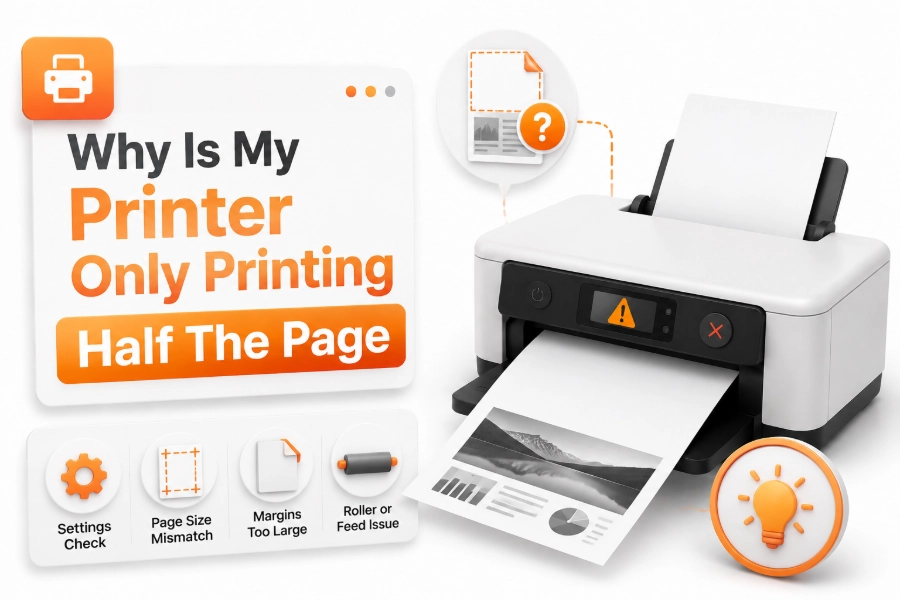
A printer that only prints half of a page can be confusing, especially when the device appears to work normally. You may send a complete document to print, but the final output is cut off, missing sections, or only appears on one side of the paper. Many users search for why is my printer only printing half the page because this problem can happen with both home and office printers.
This issue is not always caused by a damaged printer. Incorrect page settings, wrong paper size, outdated drivers, connection problems, or printer hardware issues can all prevent a document from printing correctly. Sometimes a simple adjustment in the print settings is enough to fix the problem.
This guide explains the most common reasons your printer prints only part of a page and provides practical solutions to restore full-page printing.
Check Your Printer Page Size Settings
Incorrect page size settings are one of the most common reasons a printer only prints part of a document. If your document size does not match the paper loaded in the printer, the device may crop content or leave part of the page unfinished.
For example, printing an A4 document using Letter paper settings can cause alignment problems. The printer may attempt to fit the content incorrectly, resulting in missing text or images.
Match Document Size With Paper Size
Open the print settings before printing and check the selected paper size. Make sure the document size, printer settings, and actual paper in the tray all match.
Common paper sizes include:
- A4
- Letter
- Legal
- A5
- Custom sizes
Selecting the correct option can immediately solve many half-page printing problems.
Adjust Print Scaling and Layout Options
Print scaling controls how your document fits onto the page. If scaling is set incorrectly, your printer may enlarge the content beyond the printable area and cut off sections.
Programs like Microsoft Word, PDF readers, and image editors often include their own printing options. These settings can override the default printer preferences and affect the final output.
Check Fit to Page Settings
Look for options such as:
- Fit to Page
- Shrink to Printable Area
- Scale to Fit
- Actual Size
Choosing the correct option allows the printer to adjust the document size properly and print the complete page.
Check Printer Margins and Printable Area
Every printer has a limited printable area. If your document content extends beyond these boundaries, the printer may cut off part of the page.
Large images, wide tables, and documents with narrow margins are more likely to create this problem. Adjusting the document layout can help prevent missing sections.
Reduce Document Margins
Try increasing the margins slightly in your document settings. This keeps important content away from the edges where most printers cannot print.
For professional documents, keeping reasonable margins also improves readability and prevents formatting issues during printing.
Check Paper Loading and Alignment
Paper placement problems can cause the printer to print incorrectly. If the paper is not aligned properly inside the tray, the printer may pull the sheet unevenly and only print part of the page.
Make sure the paper guides are adjusted correctly and are touching the paper edges without being too tight.
Avoid Overloading the Paper Tray
Too much paper in the tray can prevent smooth feeding. The printer may grab sheets incorrectly, causing incomplete printing.
Remove excess paper and reload the tray with a suitable amount. Also check that the paper is not bent, damaged, or stuck together.
Update or Reinstall Printer Drivers
Printer drivers help your computer communicate with the printer. When drivers become outdated or corrupted, they can cause formatting problems, including pages being cut off during printing.
Installing the latest driver version from the printer manufacturer can improve compatibility and fix printing errors.
Remove Old Printer Drivers
If updating does not solve the issue, removing and reinstalling the printer driver may help. A fresh installation resets communication settings and removes possible software conflicts.
After reinstalling the driver, print a test document to check whether the entire page appears correctly.
Check Printer Memory and Processing Issues
Some printers, especially older office models, may struggle with large documents because of limited memory. When processing complex files, the printer may stop halfway or print incomplete pages.
Large images, graphics-heavy PDFs, and high-resolution files require more printer resources than simple text documents.
Print Smaller Test Files
Try printing a basic text document first. If simple files print correctly but large files do not, the issue may be related to printer memory or document complexity.
Reducing image resolution or splitting large documents into smaller sections can also help.
Check Ink, Toner, and Hardware Problems
Although half-page printing is often related to settings, hardware problems can also cause incomplete output. Low toner, damaged components, or mechanical issues may affect how the printer handles pages.
For inkjet printers, clogged print heads can sometimes create missing areas. For laser printers, problems with toner cartridges or internal parts may affect printing quality.
Signs of Hardware Problems
Your printer may have a hardware issue if:
- Multiple documents print incorrectly.
- The problem happens on different computers.
- The printer makes unusual sounds.
- Error messages appear frequently.
- Cleaning and settings adjustments do not help.
In these cases, professional inspection may be necessary.
Restart Your Printer and Computer
Temporary communication errors can cause incomplete printing. Restarting both the printer and computer can refresh the connection and clear minor software problems.
Turn off the printer, unplug it for a short time, reconnect it, and restart your computer before trying again.
Check USB and Wireless Connections
For USB printers, confirm that the cable is securely connected. A damaged cable may interrupt data transfer and result in incomplete pages.
For wireless printers, make sure the printer and computer are connected to the same network. Weak connections can cause printing interruptions.
Fix Half-Page Printing in Different Applications
Sometimes the printer is working correctly, but a specific application creates the problem. Documents from Word, PDF readers, browsers, or image programs may use different printing settings.
Testing from another application can help determine whether the problem is caused by the software or the printer itself.
Test With Another Document
Print a simple document from a different program. If it prints correctly, review the original file’s formatting and layout settings.
If every document prints only halfway, focus on printer settings, drivers, or hardware troubleshooting.
Common Causes and Quick Solutions
| Problem | Possible Cause | Solution |
|---|---|---|
| Page is cut off | Wrong scaling settings | Adjust fit-to-page options |
| Only one side prints | Incorrect paper size | Match paper and document settings |
| Missing lower section | Large margins or layout issue | Adjust page layout |
| Printing stops halfway | Connection problem | Restart and check connection |
| Large files fail | Printer memory issue | Reduce file size |
Tips to Prevent Half-Page Printing Problems
Regular maintenance and correct settings can help prevent printing issues. Before printing important documents, checking basic settings can save time and avoid wasted paper.
Helpful prevention tips:
- Always select the correct paper size.
- Keep printer drivers updated.
- Avoid using damaged paper.
- Check print preview before printing.
- Maintain proper printer connections.
- Keep printer firmware updated.
Conclusion
A printer that only prints half the page is usually caused by incorrect settings, paper size mismatches, scaling problems, outdated drivers, or connection issues. In most cases, the problem can be fixed without replacing the printer.
When you understand why is my printer only printing half the page, troubleshooting becomes much easier. Start by checking print settings, paper alignment, and document layout before moving to advanced solutions like driver updates or hardware checks.
Keeping your printer properly maintained and reviewing settings before printing can help prevent incomplete pages and ensure reliable results.
FAQ
Why is my printer cutting off the bottom half of the page?
Your printer may cut off the bottom half because of incorrect scaling, wrong paper size, large margins, or content extending beyond the printable area. Adjusting page settings usually fixes this issue.
Why does my printer print only half of a PDF?
PDF files may print incorrectly because of scaling settings or compatibility issues. Try selecting “Fit” or “Shrink to Printable Area” in the PDF print options.
Can low ink cause my printer to print half pages?
Low ink usually causes faded or missing sections rather than half-page printing. However, severe cartridge problems may affect overall print output.
Why is my printer printing only the top half of documents?
This can happen due to incorrect page size settings, driver problems, document formatting issues, or printer communication errors.
How do I reset my printer when it prints incomplete pages?
Turn off the printer, disconnect the power cable, wait a few minutes, reconnect it, and restart your computer. Then check settings and print a test page.
0 Comments